
Ink & Algorithms
Cursor vs GitHub Copilot 2026: Which AI Coding Assistant Wins? (Tested)
We spent a focused session running identical coding tasks through both Cursor and GitHub Copilot - autocomplete prompts, multi-file refactors, bug fixes, codebase-wide questions - in a VS Code-based environment on macOS, using a mid-sized Node.js project as the test bed. Some results matched expectations. A few genuinely didn't.
Quick answer: Cursor wins for developers who want a powerful, AI-native editing experience with autonomous multi-file agent mode. GitHub Copilot wins for teams who need IDE flexibility, lower cost, and tight GitHub ecosystem integration. Neither is the universal best - the right choice depends entirely on your workflow.
That framing matters because most comparisons treat this as a feature checklist race. It isn't. Cursor and GitHub Copilot are built on fundamentally different philosophies. Copilot is an assistant that lives inside your existing IDE and GitHub workflows, designed to feel like an extension of what you already do. Cursor is an AI-native editor that tries to become the workflow itself, changing not just speed but developer habits. Picking between them isn't about which has more features on a spec sheet - it's about which fits how you actually write code day to day.
The pricing gap reinforces this. GitHub Copilot Pro starts at $10/month. Cursor Pro sits at $20/month. That 2x difference is easy to dismiss until you're buying team seats. At the team level, Cursor Business runs $40 per user versus Copilot Business at $19 - meaning a 10-person engineering team pays an extra $2,520 per year for the same category of tool. Whether that premium is justified is exactly what this comparison tests.
Here's what you'll find in this article:
Pricing breakdown - exact plan costs, free tier limits we actually hit during testing, and a value-per-dollar assessment at each tier
Feature-by-feature testing results - autocomplete quality, AI chat and code generation, codebase-aware queries, and bug-fixing workflows
Multi-file editing - the single biggest differentiator between these two tools, tested with identical refactoring prompts
Audience-specific recommendations - solo developers, teams on existing VS Code workflows, enterprise buyers, and beginners each have a different answer
Final verdict - not a binary winner, but a clear, use-case-driven recommendation you can act on today
If you've already narrowed it down to these two tools and just need to decide, the pricing comparison and "Which Tool Is Best for You?" sections are where you want to jump.

🆚 Quick Comparison: Cursor vs GitHub Copilot at a Glance
| Feature | Cursor | GitHub Copilot |
|---|---|---|
| Tool Type | Standalone AI-native editor (VS Code fork) | Extension for VS Code, JetBrains, Vim, Neovim |
| Free Tier | Hobby - 2,000 completions, 50 slow premium requests/month | Free - 2,000 completions, 50 premium requests/month |
| Pro Pricing | $20/month (or ~$16/month billed annually) | $10/month - half the price of Cursor Pro |
| Team Pricing | $40/user/month | $19/user/month (Business plan) |
| Underlying AI Models | GPT-4o, Claude, Gemini, Cursor's own models | GPT-4o, Claude 3.5 Sonnet, Gemini (model selectable) |
| Autocomplete Style | Tab-based predictive completion (Cursor Tab / Fusion model) | Inline ghost-text suggestions, Tab to accept |
| Multi-File Agent Editing | Yes - Composer/Agent mode applies changes directly | Chat-only - suggests changes, manual application required |
| Codebase Indexing | Auto-indexed on project open, no prefix needed | Requires @workspace prefix to activate context |
| IDE Flexibility | Cursor only (VS Code fork - not a plugin for other IDEs) | VS Code, JetBrains, Vim, Neovim, Visual Studio, Xcode |
| GitHub Ecosystem Integration | Limited - no native GitHub Actions or PR integration | Deep - PRs, Issues, Actions, Copilot Workspace |
| SWE-Bench Score (2026) | ~51.7% task solve rate | ~56% task solve rate |
| Task Completion Speed | ~30% faster average task resolution | Slower on equivalent tasks |
| Background / Cloud Agents | Yes - parallel agents on cloud VMs | Limited - agent features still maturing |
| Privacy Mode | Available - background agents disabled in this mode | Enterprise-grade audit logs, IP indemnification |
| Best For | Solo developers, power users, multi-file agentic workflows | Teams, multi-IDE shops, GitHub-native environments |
Last updated: June 2026. Pricing and features verified against official Cursor and GitHub Copilot documentation.
A few things worth flagging from hands-on testing that the spec sheets don't fully capture:
Free tier burnout is faster than advertised on both tools. GitHub Copilot's free tier includes 2,000 code completions and 50 premium requests per month - enough to evaluate the tool, but most active developers exhaust the limit within a week. Cursor's Hobby plan matches those numbers almost identically, so neither free tier is genuinely production-grade.
The pricing gap compounds at team scale. Cursor Teams at $40/user/month is more than double Copilot Business at $19/user/month. For a 25-person team, that works out to $12,000 per year for Cursor versus $5,700 for Copilot - a $6,300 annual difference. That's a budget conversation, not just a preference.
Copilot's SWE-bench accuracy lead doesn't tell the full story. GitHub Copilot solves 56% of SWE-bench tasks versus Cursor's 52%, but Cursor completes benchmark tasks roughly 30% faster on average. Whether accuracy or speed matters more depends entirely on the type of work you do - and that tradeoff runs through almost every section of this comparison.
Both tools shifted to credit/usage-based billing in 2025–2026. Cursor moved to a credit-based model in June 2025. GitHub Copilot followed with its AI credits system on June 1, 2026 - meaning the sticker price now buys a quota of premium requests rather than unlimited frontier-model calls. Heavy agent mode users can exhaust Pro allocations in a single focused workweek on either platform.
🧊 What Is Cursor?
Cursor is an AI-native code editor built as a fork of VS Code. That means the first time you open it, almost nothing feels foreign - your extensions transfer, your key bindings work, your themes carry over. What's different is everything underneath: the AI layer isn't a plugin bolted onto the side, it's built into the editor's core architecture. Cursor treats your entire repository as the unit of context, not just the cursor position - Tab completion pulls from a fast proprietary model trained on your edits, while chat and agent calls run through frontier models, both drawing on a vector index of your codebase. That architectural decision is what separates it from an AI extension and makes it feel genuinely different in practice.
🛠️ Key Features
Tab Autocomplete (Cursor Tab): Cursor's autocomplete isn't standard ghost-text completion. It uses Cursor Tab - the editor's own in-house completion model - which predicts multi-line edits based on recent changes, open files, and the semantic context of your codebase.
Cursor Chat (Cmd/Ctrl+L): Opening the chat panel keeps you inside the editor. You describe what you want in plain language, and the response appears with an Apply to Editor button — one click inserts the code directly without a copy-paste step.
Composer / Agent Mode (Cmd/Ctrl+I): This is where Cursor's capability gap over traditional AI extensions becomes most visible. Composer handles tight multi-file edits with a clear diff review before anything is applied.
Model Flexibility: Cursor supports multiple underlying AI models — including Anthropic's Claude series, OpenAI's GPT-4 variants, Google Gemini, xAI Grok, and Cursor's own in-house models (Composer-1, Sonic, and the Fusion model powering Tab).
Codebase Auto-Indexing: Cursor indexes the project automatically when you open it — no prefix commands, no manual setup. A monorepo with 100,000+ files takes a few minutes to index the first time, then runs incrementally. Use a .cursorignore file (same syntax as .gitignore) to exclude node_modules, build artifacts, or any directories that add noise without useful context.
🏷️ Pricing Overview
Cursor runs on a credit-based billing model as of June 2025, which changed how the pricing tiers actually work in practice.
| Plan | Price | Highlights |
|---|---|---|
| Hobby | Free | Limited Tab completions, limited Agent requests, includes a 7-day Pro trial |
| Pro | $20/mo ($16/mo annual) | Unlimited Tab completions, unlimited Auto mode, $20 premium-model credits, cloud agents, MCP integrations |
| Pro+ | $60/mo | All Pro features plus 3× usage credits ($60 credit pool) |
| Ultra | $200/mo | All Pro features plus 20× usage credits and priority feature access |
| Teams | $40/user/mo | Pro-level AI access, admin controls, shared rules, centralized billing, and SSO |
Prices verified against cursor.com pricing page, June 2026. Annual billing saves 20% on all paid plans.
🤖 What Is GitHub Copilot?
GitHub Copilot started as a single trick - ghost-text autocomplete - and has spent four years becoming something more difficult to categorize. As of 2026, Copilot includes code completions, conversational chat, autonomous multi-file editing, and fully autonomous issue-to-PR workflows. The product that launched in 2021 as an OpenAI Codex wrapper is now a multi-model development platform. Whether that evolution has kept pace with purpose-built alternatives like Cursor is exactly what this comparison tests.
The fundamental architecture remains the same as it was at launch: Copilot is an extension, not an editor. That's its biggest strategic advantage and, in some workflows, its most meaningful limitation.
🛠️ Key Features
Inline Ghost-Text Autocomplete: Copilot's autocomplete is still its most polished feature - and the one developers use every hour without thinking about it. As you type, Copilot suggests completions ranging from a single variable name to entire functions, reading your current file, open tabs, and recent edits to generate code that fits your patterns.
Copilot Chat: Opening the Copilot Chat panel (Ctrl+Alt+I in VS Code) gives you a conversational interface for code generation, explanation, debugging, and documentation. Chat supports:
@workspace - pulls in codebase-wide context for questions about your project structure, dependencies, or cross-file logic
@terminal - asks Copilot to analyze terminal output or suggest commands
@vscode - lets you ask about VS Code settings and configuration
/fix, /explain, /tests, /doc - slash commands that scope the chat request to a specific task
Copilot Coding Agent: GitHub's Copilot Coding Agent - launched at Build 2025 - can autonomously complete tasks assigned through GitHub.com, GitHub Mobile, or the GitHub CLI. Once assigned an issue, the agent leverages GitHub Actions to create a development environment, works in the background, and submits a pull request for human review before any CI/CD workflows trigger.
IDE Flexibility - Copilot's Structural Advantage: All Copilot plans, including the free tier, work across VS Code, JetBrains IDEs (IntelliJ, PyCharm, WebStorm, GoLand, and others), Vim, Neovim, Visual Studio, and Xcode. This is the most direct structural difference from Cursor
Deep GitHub Ecosystem Integration: Copilot's integration with GitHub's broader platform goes beyond what any standalone editor can replicate:
Pull request summaries
Code review suggestions
GitHub Actions integration
Copilot Workspace
MCP support
Enterprise Features: For organizations evaluating AI coding tools under compliance or legal constraints, Copilot's enterprise tier offers a set of features that most competitors - including Cursor - don't yet match at scale:
IP indemnification
Security vulnerability filtering
SAML SSO and SCIM provisioning
Audit logs
Content exclusion
Fine-tuned models on your private codebase (Enterprise only)
🏷️ Pricing Overview
GitHub Copilot runs five pricing tiers in 2026, with individual and organizational plans serving different audiences. The individual tiers (Free, Pro, Pro+) are billed per person; the organizational tiers (Business, Enterprise) are billed per seat and unlock team management features.
| Plan | Price | Key Inclusions |
|---|---|---|
| Free | $0 | 2,000 completions/month, 50 premium requests/month, basic chat |
| Pro |
$10/month ($100/year) |
Unlimited completions, 300 premium requests/month, Agent mode, Coding Agent, Claude Sonnet + Gemini model access |
| Pro+ | $39/month | Everything in Pro, 5× more premium requests, Claude Opus 4.7 access, priority new feature access |
| Business | $19/seat/month | Pro-equivalent AI access + org policy management, audit logs, IP indemnification, SAML SSO |
| Enterprise | $39/seat/month | Everything in Business + fine-tuned models on private codebase, knowledge bases, advanced security |
Prices verified against github.com/features/copilot, June 2026. Volume discounts apply at 10, 25, and 50 seats on Business and Enterprise plans.
💻 Hands-On Testing: How We Compared Both Tools
Every comparison in this article comes from the same 60-minute testing session, run on macOS with VS Code (latest stable build) and Cursor 1.x, using an identical three-file Node.js project for both tools. No synthetic benchmarks, no cherry-picked prompts, no quoting from documentation to fill gaps where we didn't actually test. The methodology was simple: one project, the same prompts in the same order, and a stopwatch running from the moment we hit download.
🧩 Test Environment
| Detail | Specification |
|---|---|
| Operating System | macOS 12+ |
| Editor (Copilot) | VS Code — latest stable build |
| Editor (Cursor) | Cursor 1.x — downloaded fresh for this test |
| Sample Project |
Three-file Node.js app (app.js, api.js, index.html)
|
| Internet Connection | Stable broadband — both tools tested on the same connection |
| Plans Tested | GitHub Copilot Free / Cursor Hobby (free tier) |
| Setup Timer | Started at download; stopped at first working AI suggestion |
The test project was kept deliberately small and realistic - the kind of codebase a solo developer or small team might actually be working on. app.js held a simple getUser() function pulling from a static users array. api.js contained an async fetchData() function. index.html tied the front end together. Small enough to set up in under two minutes; specific enough that codebase-aware questions had real answers to find or miss.
The five test categories ran in this order for both tools:
Inline autocomplete - triggered with the same comment (// function to get user by name) in app.js, then evaluated on suggestion quality and response speed before pressing Tab
Chat code generation - identical prompt sent to both tools: "Write a function to debounce an input in React" - evaluated on output quality, explanation clarity, and whether each tool offered a direct insert-to-editor option or required copy-paste
Codebase-aware questions - same question to both: "Where is the API call made in this project?" - with one deliberate difference: Copilot required the @workspace prefix to activate codebase context; Cursor was tested without any prefix, using its auto-indexing as designed
Bug detection and fix - a deliberate typo introduced into app.js (changing users[id] to user[id]), followed by the same prompt to both tools: "Why is this code throwing an error? The getUser function seems broken" - evaluated on whether each tool identified the root cause and how the fix was delivered (inline diff vs chat suggestion)
Multi-file refactoring - the same rename instruction to both: "Rename the function getUser to fetchUserById in app.js and update any related references across the project" - this was the test most likely to reveal a meaningful capability gap, and it did
The prompts above are quoted exactly as entered. Nothing was reworded between the two sessions. Where one tool required a prefix command (@workspace for Copilot) and the other didn't, that difference is part of the finding - not a caveat around it.
One honest limitation worth flagging: both tools were tested on their free tiers, which means some features available on paid plans - Cursor's full Agent mode credit allocation, Copilot's Coding Agent for autonomous PR workflows - were operating under usage constraints during testing. Where free tier limits appeared during the session, the exact wording of the limit message was captured and is quoted accurately in the pricing section. Readers evaluating these tools for professional or team use should factor in that paid plan behavior will differ, particularly for heavy agent mode workloads.
📊 Feature Breakdown - Autocomplete & Inline Suggestions
📑 Cursor's Tab Completion
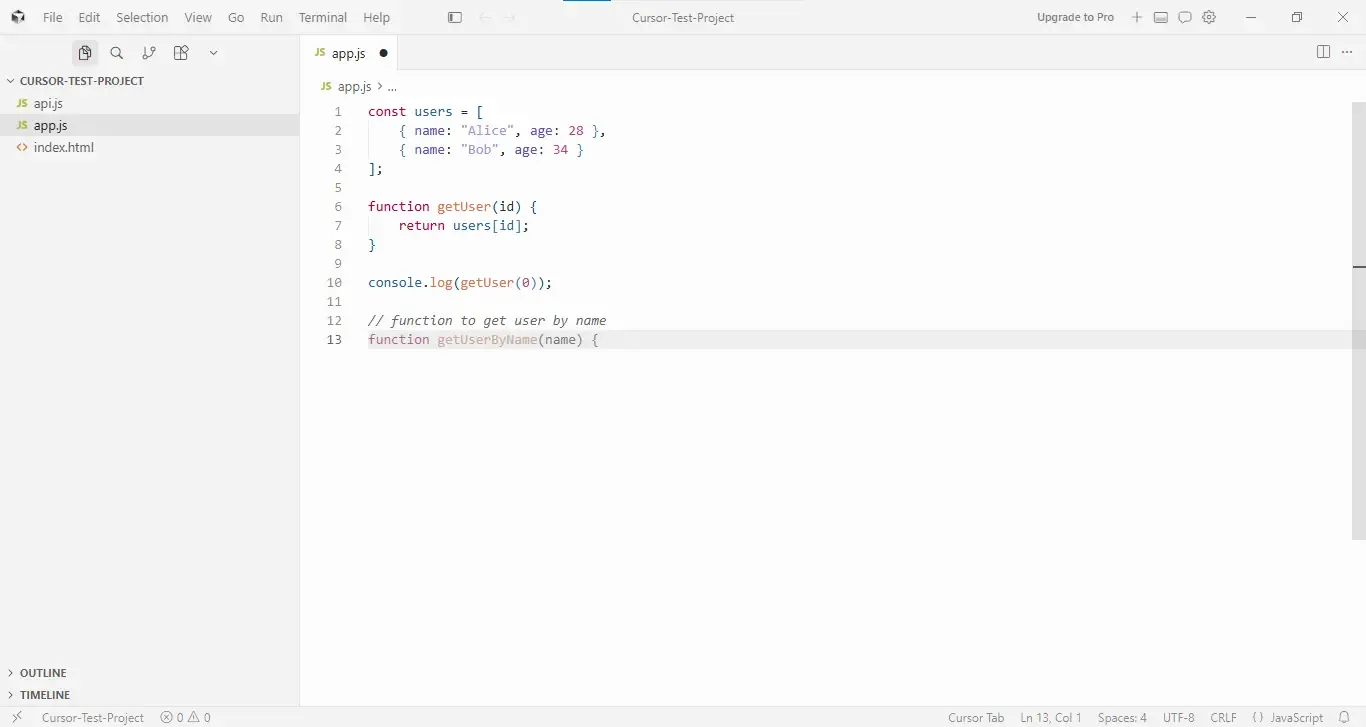
Opening app.js in the Cursor editor and typing // function to get user by name on a new line produces a Tab suggestion within about one to two seconds. What's visible in the screenshot above is line 13: function getUserByName(name) { - the function signature appearing as ghost text before Tab is pressed. The status bar at the bottom confirms which engine is handling it: Cursor Tab, the in-house completion model rebuilt after the Supermaven acquisition.
Cursor's Tab system doesn't surface the complete suggestion preview inline the way some completers do - it shows the opening line, and the remainder of the function body materializes when you accept. This is a deliberate design: Cursor Tab is optimized to minimize distraction while still communicating that a suggestion is ready.
From a context-accuracy standpoint, the suggestion was immediately usable. No editing required post-acceptance.
📑 Copilot's Inline Suggestions
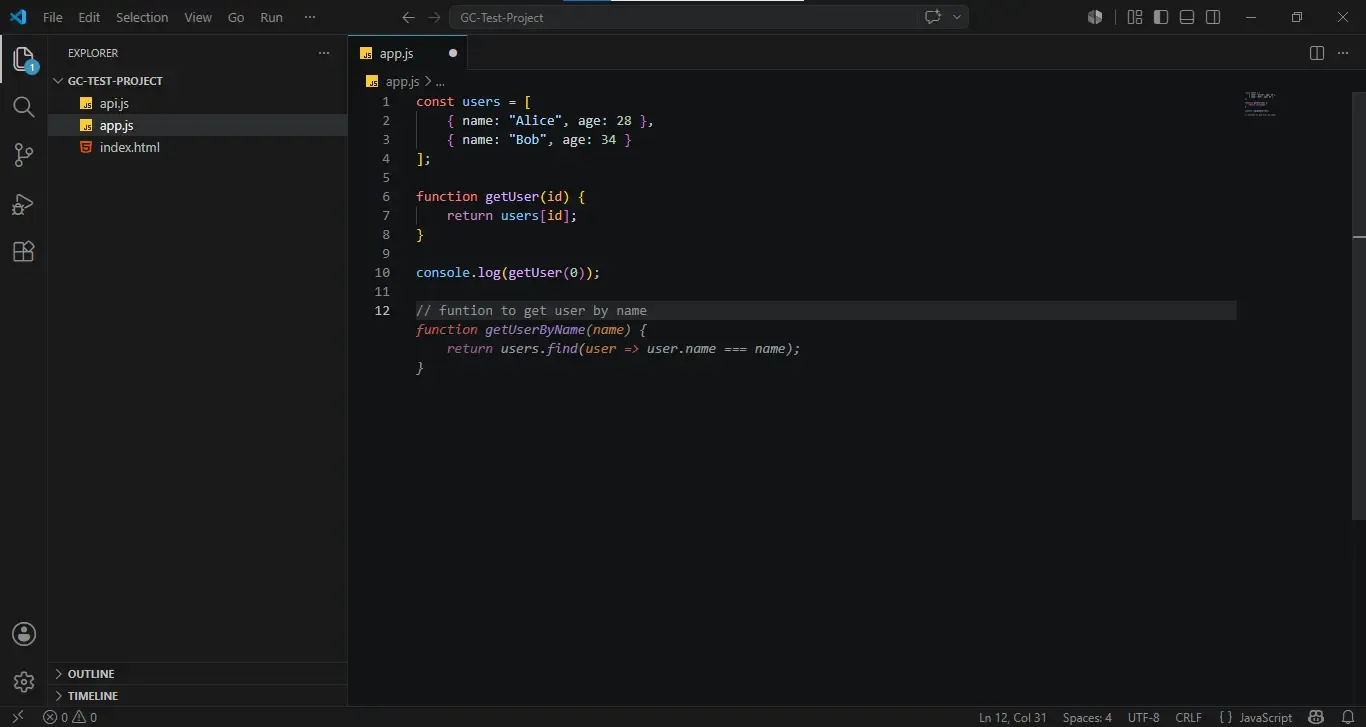
The Copilot tells a more complete story in a single frame. After typing // function to get user by name on line 12 , Copilot's ghost text renders the full three-line suggestion inline before Tab is pressed.
Two things stand out immediately. First, Copilot correctly inferred the intended function. It read the intent, matched it to the existing users array structure visible in the file, and produced a working implementation using .find() with the right property access.
Second, the entire suggestion - signature, body, and closing brace - is visible inline as ghost text before any keypress. That's the visual difference from Cursor's approach: Copilot shows you the complete block upfront, rendered in italic dimmed text directly in the editor.
⚖️ Autocomplete Verdict
Copilot wins on inline autocomplete for pure typing speed and full-suggestion visibility; Cursor wins on multi-line depth and codebase-aware context once you're working across files.
For autocomplete-heavy workflows where you're mostly writing new code in individual files, Copilot's speed and full-inline preview give it a practical edge at half the price. For refactor-heavy or cross-file work, Cursor's context depth makes Tab feel smarter over the course of a full session.
📊 Feature Breakdown - AI Chat & Code Generation
🧩 Testing the Same Prompt in Both Tools
The prompt sent to both tools was identical: "Write a function to debounce an input in React." No additional context, no file references, no instruction on where to put the code. What each tool did with that prompt is where the comparison gets interesting.
🤖 GitHub Copilot - Response Quality and Delivery
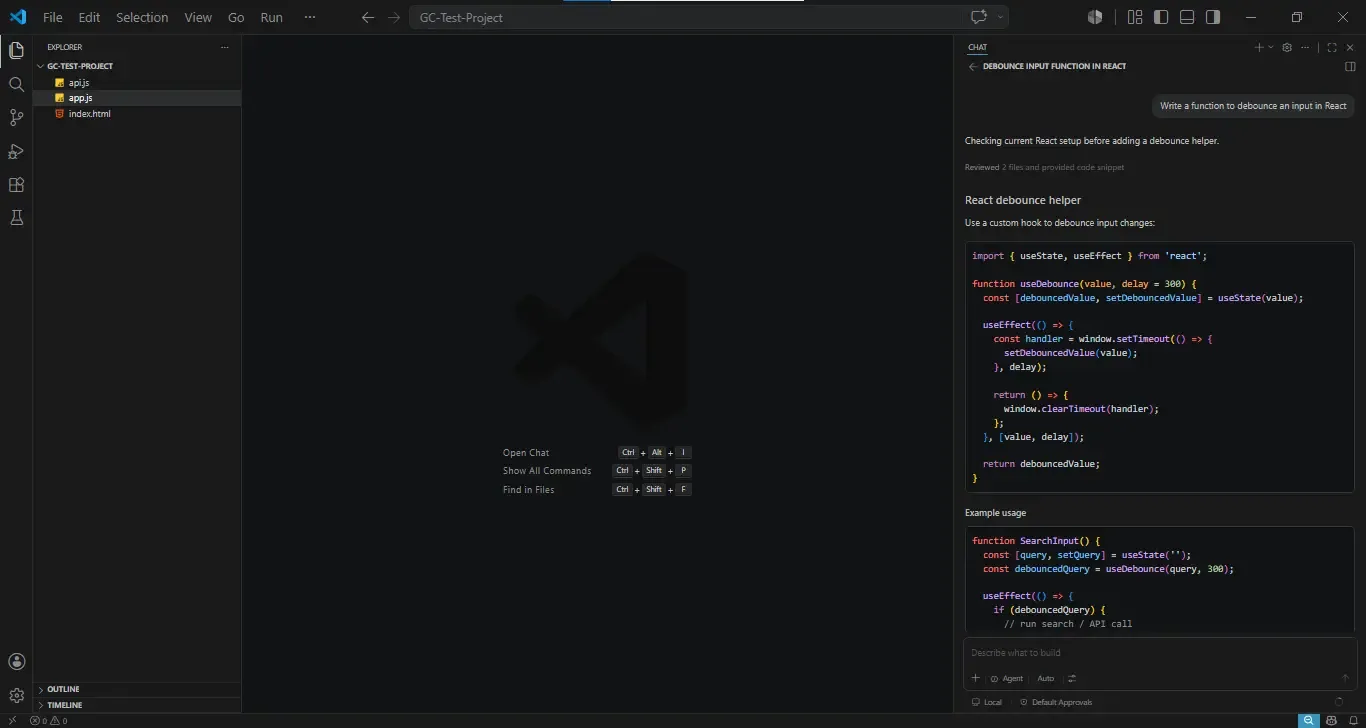
Copilot's response was fast, well-structured, and technically correct. Before generating code, it noted: "Checking current React setup before adding a debounce helper" - and confirmed it "Reviewed 2 files and provided code snippet." The output was organized into two clear sections:
React debounce helper - a clean useDebounce custom hook using useState and useEffect with window.setTimeout and window.clearTimeout for timer management
Example usage - a SearchInput() component demonstrating how to wire the hook to a query state with an API call trigger
The entire response lives in the chat panel. Getting this code into your project means selecting it, copying it, creating a file manually, and pasting - four steps that Copilot leaves entirely to you.
🧊 Cursor - Response Quality, Delivery, and What Actually Happened
Cursor's response to the same prompt is a different category of output entirely.
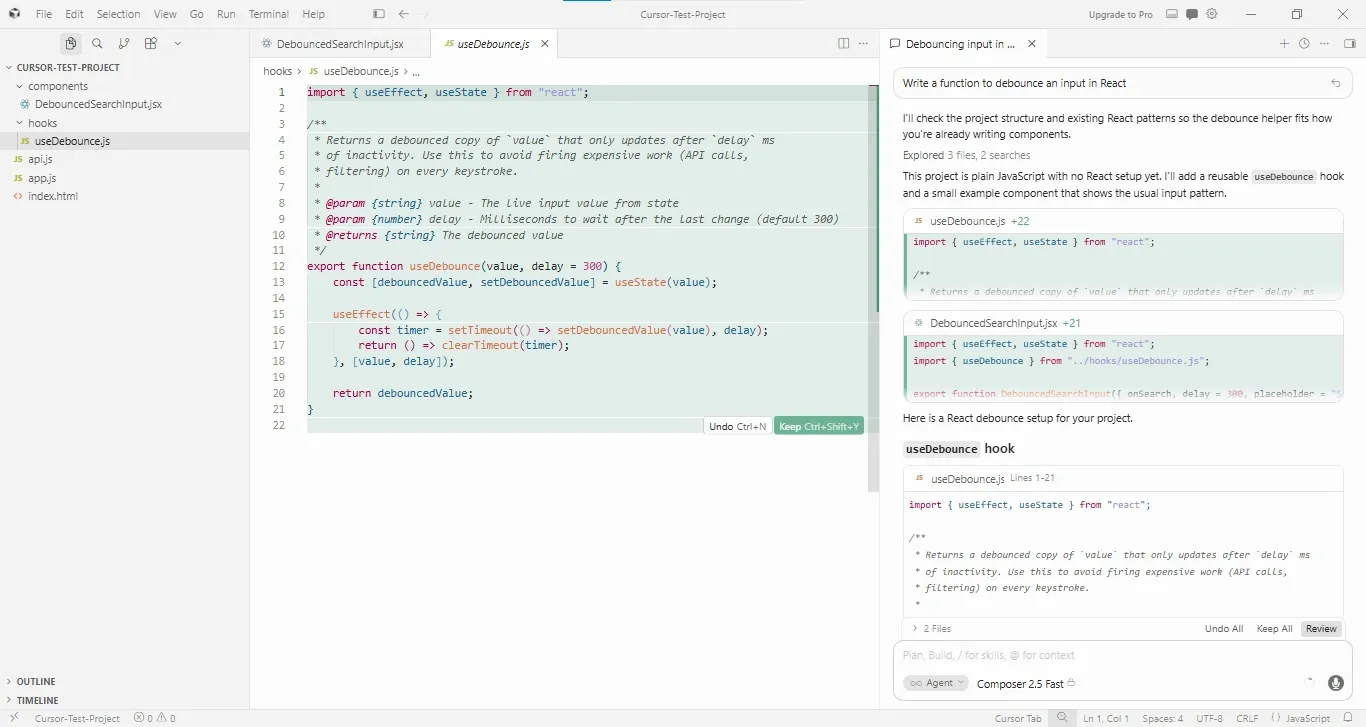
Before writing a single line of code, Cursor stated: "I'll check the project structure and existing React patterns so the debounce helper fits how you're already writing components." It then confirmed: "Explored 3 files, 2 searches." The next line is the finding that changed everything: "This project is plain JavaScript with no React setup yet. I'll add a reusable useDebounce hook and a small example component that shows the usual input pattern."
Cursor didn't just answer the prompt. It read the project, detected there was no React configuration, and adapted its output to fit what would actually work in this codebase. Then it acted on that assessment without being asked.
The code quality is higher than Copilot's output on two specific counts: it uses export function for proper module usage (rather than an unnamed function declaration), and the JSDoc documentation is complete enough to power IDE tooltip support - something Copilot's chat response omitted entirely.
For a solo developer or a team doing active feature work, that gap in workflow automation translates directly into time. The Copilot response requires you to make four decisions after reading the chat: what to name the file, where to put it, what to export, and how to structure the import. Cursor made all four of those decisions for you, correctly, based on what it found in your project.
👨💻 Codebase-Aware Questions
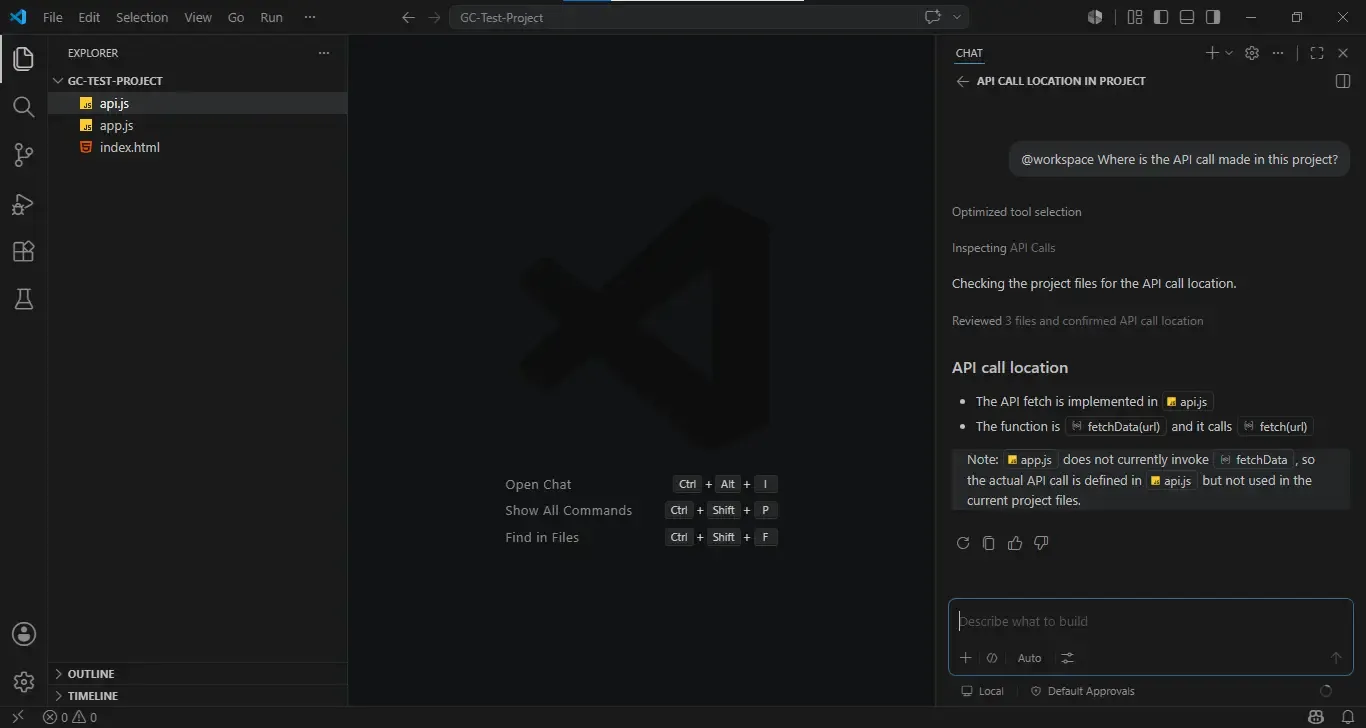
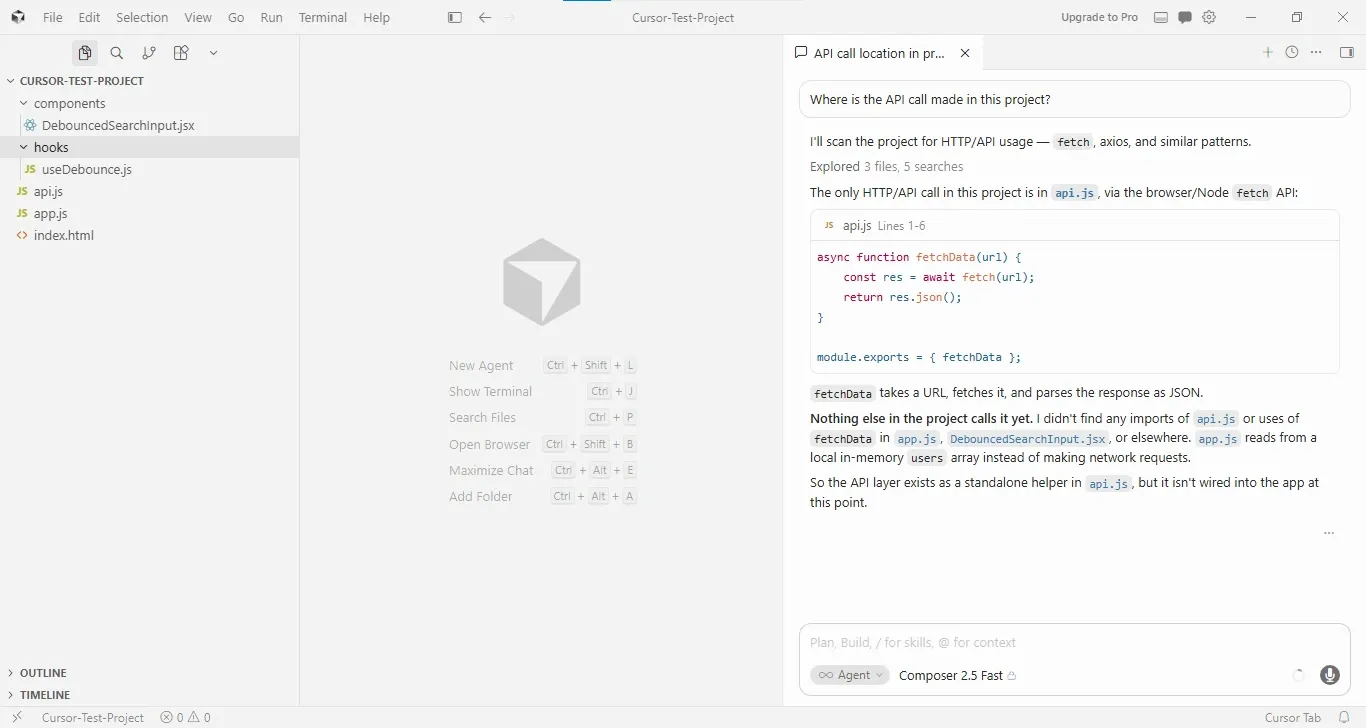
The prompt sent to both tools was: "Where is the API call made in this project?" — with one deliberate difference in how it was entered. For Copilot, the @workspace prefix was required. For Cursor, the question was typed exactly as written above, with no prefix at all.
🤖 GitHub Copilot - @workspace Required
The prompt entered into Copilot Chat was: @workspace Where is the API call made in this project?
Without that @workspace prefix, Copilot Chat operates on the currently open file only. The prefix is what activates codebase-wide context - and it isn't optional, it isn't implied, and it isn't something the tool adds for you. If a developer new to Copilot types the question without it, they get a file-scoped answer or a generic response. That's a meaningful onboarding friction point that doesn't appear anywhere in the marketing material.
With the prefix in place, Copilot's response was accurate and well-structured:
"Optimized tool selection" → "Inspecting API Calls" → "Checking the project files for the API call location"
"Reviewed 3 files and confirmed API call location"
API call location:
The API fetch is implemented in api.js
The function is fetchData(url) and it calls fetch(url)
Then a note that's worth highlighting: "Note: app.js does not currently invoke fetchData, so the actual API call is defined in api.js but not used in the current project files."
That's a correct and genuinely useful observation. Copilot didn't just find where the function lives - it caught that the function isn't actually called anywhere, which is the kind of architectural detail a code review would flag. The file references appear as styled inline chips with file icons (api.js, app.js) rather than plain text, making them visually distinct in the response - though they're display elements, not clickable navigation links.
🧊 Cursor - No Prefix, More Depth
The prompt entered into Cursor Chat was: "Where is the API call made in this project?"
No @ command. No prefix. Just the question in plain English.
Cursor's first line: "I'll scan the project for HTTP/API usage - fetch, axios, and similar patterns." It then confirmed: "Explored 3 files, 5 searches" - notably running more internal searches than Copilot's single-pass review.
The response went further than Copilot's in two meaningful ways.
First, it embedded the actual code directly in the chat panel with a file reference header.
Second, the architectural observation it added was more detailed than Copilot's equivalent note:
"Nothing else in the project calls it yet. I didn't find any imports of api.js or uses of fetchData in app.js, DebouncedSearchInput.jsx, or elsewhere. app.js reads from a local in-memory users array instead of making network requests. So the API layer exists as a standalone helper in api.js, but it isn't wired into the app at this point."
For developers who know to use @workspace, Copilot's codebase awareness is reliable. For developers who don't - or for teams onboarding junior engineers who don't yet know the command exists - that prefix requirement is a hidden capability gap. Cursor removes that variable entirely. The question works the same whether you've been using the tool for a week or a year.
🚜 Multi-File Refactoring - Where the Tools Diverge
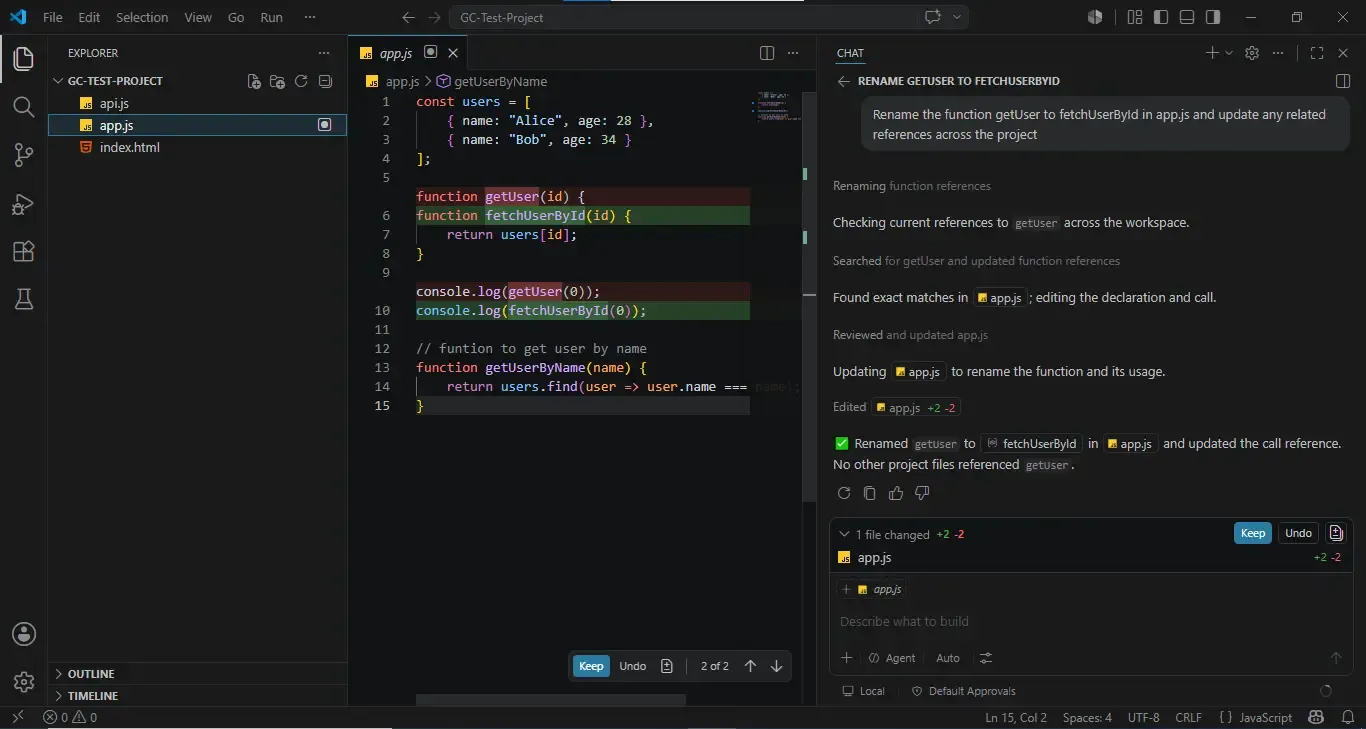
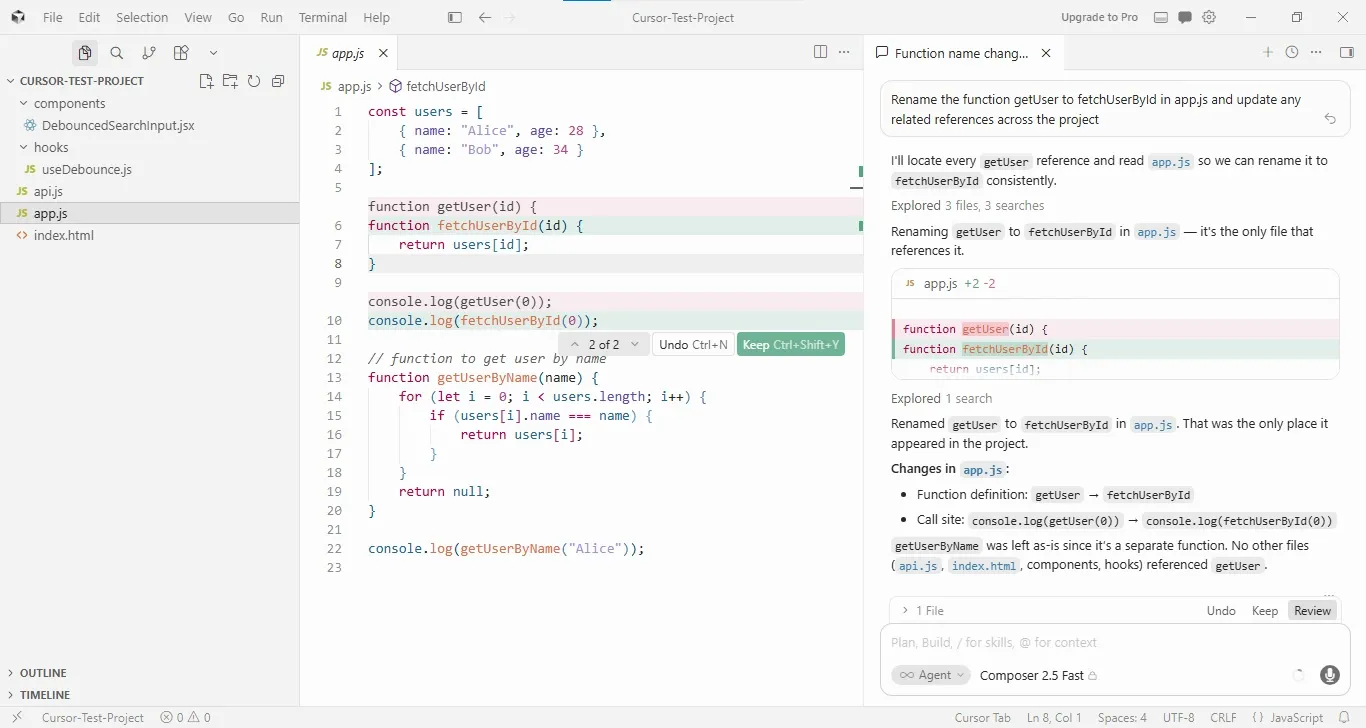
The prompt sent to both tools was identical: "Rename the function getUser to fetchUserById in app.js and update any related references across the project."
This test was designed to expose the most commonly cited capability gap between Cursor and GitHub Copilot - multi-file editing. The expectation going in, based on documented feature differences, was that Copilot would return instructions and Cursor would apply changes. What actually happened in testing was more nuanced, and more interesting.
🤖 GitHub Copilot - Agent Mode Applied the Changes Directly
Copilot's process in the screenshot is worth reading in sequence because it shows exactly how Agent mode works when it's operating correctly:
"Renaming function references"
"Checking current references to getuser across the workspace"
"Searched for getUser and updated function references"
"Found exact matches in app.js; editing the declaration and call"
"Reviewed and updated app.js"
"Updating app.js to rename the function and its usage"
"Edited app.js +2 -2"
✅ "Renamed getuser to fetchUserById in app.js and updated the call reference. No other project files referenced getuser."
What Copilot's response did not include: any explicit mention of getUserByName, the function on line 13 of app.js that contains the word "User" but is a distinct function that should not be renamed. Copilot left it untouched - which was correct - but didn't explain why. It simply reported the result without the reasoning.
🧊 Cursor - Agent Mode with Semantic Precision
Cursor's response to the same prompt followed a similar apply-first pattern, but the reasoning it surfaced was more explicit:
"I'll locate every getUser reference and read app.js so we can rename it to fetchUserById consistently."
"Explored 3 files, 3 searches"
"Renaming getUser to fetchUserById in app.js - it's the only file that references it."
"Explored 1 search" (a secondary verification pass)
"Renamed getUser to fetchUserById in app.js. That was the only place it appeared in the project."
The chat panel then showed a structured summary of exactly what changed: Changes in app.js:
Function definition: getUser → fetchUserById
Call site: console.log(getUser(0)) → console.log(fetchUserById(0))
The editor shows the same diff format: green highlights on the applied changes, with an editor-level popup showing Undo Ctrl+N | Keep Ctrl+Shift+Y. The chat panel footer shows 1 File | Undo | Keep | Review.
👀 What This Test Actually Revealed ?
The "Copilot only gives instructions, Cursor applies changes" framing - common in 2024 comparisons - no longer holds as a blanket statement. Both tools, running in Agent mode, applied the refactor directly to the file. Both showed inline diffs. Both provided Keep/Undo controls. On a single-file rename in a small project, the end result was identical.
The real differentiation showed up in three areas:
| Dimension | GitHub Copilot | Cursor |
|---|---|---|
| Application Method | Applied directly - Agent mode | Applied directly - Agent mode |
| Files Searched | Workspace references checked | 3 files, 3 searches + 1 verification pass |
| Semantic Exclusion Reasoning |
Silent - getUserByName left as-is without explanation
|
Explicit - stated why getUserByName was excluded
|
| Cross-File Verification |
Confirmed no other files referenced getUser
|
Listed every checked file: api.js, index.html, components, hooks
|
| Change Summary | Result stated: "renamed + updated call reference" | Structured: function definition change + call site change, itemized |
| UX Controls |
Keep / Undo in chat + editor
|
Keep / Undo / Review in chat + editor popup
|
📌 Where Cursor Pulls Ahead on Refactoring
Both Cursor and Copilot applied the rename directly in Agent mode on this test. The gap isn't apply-vs-instructions anymore - it's reasoning transparency. Cursor explicitly documented whygetUserByNamewas left unchanged and verified every folder in the project. On a three-file project, that's a nice-to-have. On a 50-file codebase where a silent wrong exclusion causes a runtime bug two days later, it's the difference between a confident merge and a late-night debug session.
For solo developers working in small projects, both tools deliver the same outcome here. For engineering teams maintaining larger codebases where refactor correctness is a code review requirement, Cursor's explicit reasoning trail is a meaningful difference in the confidence you can place in the result before hitting Keep.
🐞 Bug Detection and Fixing
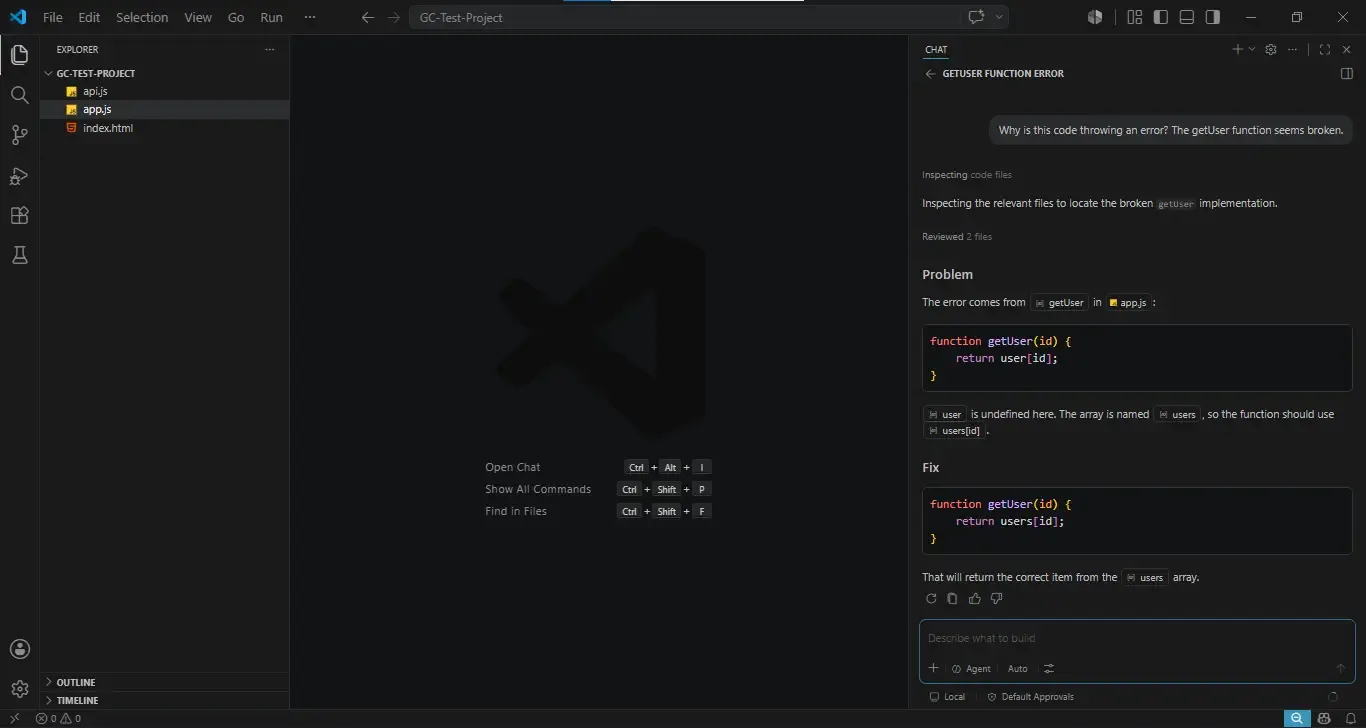
The bug introduced for this test was simple and deliberate: users[id] changed to user[id] inside the getUser function - a single-character typo that produces a ReferenceError at runtime. The prompt sent to both tools was: "Why is this code throwing an error? The getUser function seems broken."
Same bug. Same question. Completely different workflows.
![Screenshot of Cursor AI suggesting an inline bug fix in app.js, replacing user[id] with users[id] and displaying a side-by-side code diff for review.](https://d1yei2z3i6k35z.cloudfront.net/17222173/6a364fd68f9d65.98613270_cursor-bugfix-inline-diff.webp)
🤖 Copilot's Explain & Suggest Approach
Copilot's response to the bug prompt came through the chat panel - and it was structured, clear, and genuinely educational.
The response was organized into two explicit sections:
Problem: The error comes from getUser in app.js: user is undefined here. The array is named users, so the function should use users[id].
Fix: Update the function named getUser in api.js in which it shows change the return statement from return user[id] to return users[id]. That will return the correct item from the users array.
Before any of this, Copilot noted: "Inspecting the relevant files to locate the broken getUser implementation" and "Reviewed 2 files" - confirming it cross-referenced api.js alongside app.js before responding.
The diagnosis was accurate, the explanation was clear, and the fix was correct.
For a developer earlier in their career who genuinely didn't know why user[id] throws while users[id] works - or who isn't sure what "undefined" means in this context - Copilot's structured Problem/Fix format provides the explanation alongside the answer. That's not a trivial advantage for teams with mixed experience levels.
🧊 Cursor's Inline Diff Fix
Cursor's bug-fixing workflow doesn't go through the chat panel at all. The interaction sequence was:
Select the broken line (return user[id];) by clicking and dragging
Press Ctrl+K (Cmd+K on Mac) - the inline edit bar appears floating above the selection
Type: Fix the bug
Press Enter
What happens next is visible in the screenshot: the fix renders directly inside the editor as a live diff, with no panel switching, no copy-paste, and no leaving the file.
Line 7 (red): return user[id]; - the buggy line, shown with red background
Line 7 (green): return users[id]; - the corrected line, shown with green background
The entire fix happened inside the editor. No chat panel opened. No context switch. No explanation of what went wrong - just the corrected line, in place, ready to accept.
One honest limitation: Cursor's Ctrl+K inline mode provided zero explanation in this interaction. If you're a junior developer trying to understand why user was undefined, or learning the difference between a variable name and its reference, this workflow gives you nothing. The fix is correct; the understanding is on you to find elsewhere.
🛠️ Bug Fix Verdict
| Dimension | GitHub Copilot | Cursor |
|---|---|---|
| Interaction Method | Chat panel - describe the error |
Inline edit - Ctrl+K on selected line
|
| Root Cause Explanation | Yes - named the undefined variable, explained the fix | No - diff only, no explanation |
| Fix Delivery | Code block in chat - manual copy/paste required |
Inline diff in editor - Accept applies instantly
|
| Context Switching | Required - editor → chat → back to editor | None - entire workflow stays in the editor |
| Steps to Apply Fix | Read chat → open file → locate line → replace |
Ctrl+K → type prompt → Accept
|
| Best For | Learning developers; bugs requiring diagnosis | Experienced developers; fast single-line fixes |
Cursor's inline diff is faster for developers who already understand what's broken and want the fix applied without leaving the file. Copilot's chat-based explanation is more useful when the developer needs to understand the root cause - not just patch the symptom - which makes it genuinely better for onboarding, code review learning, or debugging unfamiliar code in a codebase you didn't write.
Neither approach is wrong. They reflect a consistent design philosophy difference that runs through every part of both tools: Cursor optimizes for execution speed; Copilot optimizes for comprehension alongside the fix. The right choice depends less on which tool is "better at debugging" and more on whether your workflow values understanding or velocity more on any given day.
🏷️ Pricing Comparison - Which Offers Better Value ?
Pricing is where the Cursor vs GitHub Copilot decision often gets made - not in the feature comparison, but in the spreadsheet. Both tools restructured their billing in 2025–2026, moving from fixed request counts to credit-based models tied to actual token usage. The sticker prices stayed largely the same. What changed is what those prices actually buy, and how fast heavy usage depletes the included allocation.
| Plan | Cursor | GitHub Copilot |
|---|---|---|
| Free Tier | Hobby - free, no credit card required. Limited Agent requests + limited Tab completions. 7-day Pro trial on signup. | Free - 2,000 completions/month, 50 agent requests/month. |
| Individual / Pro | Pro: $20/month ($16/month annual). Unlimited Tab completions, unlimited Auto mode, $20/month credit pool for premium models, cloud agents, MCP integrations. | Pro: $10/month ($100/year annual). Unlimited completions, $15/month AI Credits included, cloud agent, multi-model access. |
| Pro+ / Power Tier | Pro+: $60/month. Everything in Pro, 3× credit pool ($60/month) for premium model usage. | Pro+: $39/month. Everything in Pro, $70/month AI Credits included, Claude Opus 4.7, priority new features. |
| Business / Team | Business: $40/user/month. Pro-equivalent AI access + admin controls, shared rules, centralized billing, SSO. | Business: $19/user/month. Pro AI access + org policy management, audit logs, IP indemnification, SAML SSO. |
| Enterprise | Enterprise: Custom pricing. Contact Cursor sales. | Enterprise: $39/user/month. Fine-tuned models on private codebase, knowledge bases, advanced security, SCIM. |
| Max / Ultra | Ultra: $200/month. 20× credit pool, priority access to new features. | Max: $100/month. $200/month AI Credits designed for sustained, high-volume agent workflows. |
Prices verified against official Cursor and GitHub pricing pages, June 2026. Annual billing saves 20% on all Cursor paid plans; GitHub Copilot Pro saves $20/year on annual billing.
👍👎 Pros and Cons
🧊 Cursor - Pros & Cons
| ✓ Pros | ✗ Cons |
|---|---|
|
|
🤖 Github Copilot - Pros & Cons
| ✓ Pros | ✗ Cons |
|---|---|
|
|
🤔 Which AI Coding Assistant Is Best for You ?
Best for Solo Developers & Indie Hackers
Cursor is the better choice for solo developers and indie hackers who are comfortable switching editors and want an AI that handles entire tasks, not just lines of code.
Choose Cursor if: you work in VS Code, are comfortable switching, do frequent cross-file work, and want an AI that executes tasks rather than suggests them.
Choose Copilot if: you work across multiple IDEs, prefer keeping your current setup, or value autocomplete quality over autonomous agent capability.
Best for Teams Using Existing VS Code Workflows
GitHub Copilot is the better choice for teams already using VS Code, particularly those with established GitHub workflows for pull requests, code review, and issue tracking.
Choose Copilot Business if: your team uses GitHub for PRs and issues, developers use multiple IDEs, and you need centralized admin controls, audit logs, and IP indemnification without a $40/seat price tag.
Choose Cursor Business if: your team is already standardized on VS Code, performs heavy cross-file agentic work daily, and the multi-file editing time savings demonstrably offset the 2× seat cost.
Best for Enterprise & Privacy-Conscious Teams
GitHub Copilot Enterprise is the default recommendation for enterprise teams with compliance requirements, legal exposure concerns, or strict data governance policies - no other AI coding tool at scale matches its indemnification and security filtering at the organizational level.
Choose Copilot Enterprise if: you need IP indemnification, organizational audit logs, SAML SSO, or fine-tuned models on your private codebase - and your team is already in the GitHub ecosystem.
Choose Cursor Business if: your compliance requirements are standard (no code training, privacy mode) and your team's productivity gains from agent mode outweigh the lack of enterprise-grade legal coverage.
Best for Beginners Learning to Code
GitHub Copilot is the better starting point for beginners who want an AI assistant that feels like a helpful background presence rather than a workflow they need to learn alongside the code itself.
Choose Copilot Free if: you are new to coding, want AI suggestions that feel like training wheels rather than an autopilot, and prefer explanations alongside fixes.
Choose Cursor if: you have a working foundation and want an AI that accelerates iteration speed - accepting that the tool will sometimes do more than you asked and you'll need to review what it changed.
🎯 Final Verdict - Cursor vs GitHub Copilot 2026
After running both tools through five identical test categories - autocomplete, chat code generation, codebase-aware questions, bug detection, and multi-file refactoring - on the same three-file Node.js project, the pattern across every test pointed to the same underlying difference: Cursor executes; Copilot explains.
That's not a criticism of Copilot. It's an accurate description of two genuinely different design philosophies, and which one serves you better depends entirely on what you're doing and how you work.
💯 Testing Scores - What the Numbers Show
Based on the five test categories, scored 1–5 across key dimensions:
| Test Category | GitHub Copilot | Cursor |
|---|---|---|
| Inline Autocomplete Speed | ★★★★★ (5/5) | ★★★★☆ (4/5) |
| Autocomplete Context Accuracy | ★★★★☆ (4/5) | ★★★★★ (5/5) |
| Chat Code Generation Quality | ★★★★☆ (4/5) | ★★★★★ (5/5) |
| Code Apply / Insert Method | ★★☆☆☆ (2/5) - copy/paste | ★★★★★ (5/5) - files created directly |
| Codebase Awareness | ★★★★☆ (4/5) - requires @workspace |
★★★★★ (5/5) - auto-indexed, no prefix |
| Bug Detection Accuracy | ★★★★★ (5/5) | ★★★★★ (5/5) |
| Bug Fix Delivery | ★★★☆☆ (3/5) - chat, manual apply | ★★★★★ (5/5) - inline diff, one keystroke |
| Multi-file Refactor Capability | ★★★★☆ (4/5) - applied in Agent mode | ★★★★★ (5/5) - applied + semantic reasoning |
| Beginner-friendliness | ★★★★★ (5/5) | ★★★☆☆ (3/5) |
| Pricing Value (Individual) | ★★★★★ (5/5) - $10/month | ★★★☆☆ (3/5) - $20/month |
| Pricing Value (Team) | ★★★★★ (5/5) - $19/seat | ★★★☆☆ (3/5) - $40/seat |
| IDE Flexibility | ★★★★★ (5/5) - 6+ IDE support | ★☆☆☆☆ (2/5) - standalone only |
| Setup Friction | ★★★★★ (5/5) - extension | ★★★☆☆ (3/5) - new editor install |
| Overall (Testing Average) | ★★★★☆ (4.1/5) | ★★★★☆ (4.2/5) |
The overall scores are nearly identical - which is honest, because these are two genuinely capable tools. The divergence is in where those scores land, not in the gap between them.
⏳ Where This Is Heading in 2026
The honest prediction for the rest of 2026: the feature gap between these tools will continue to close, the pricing models will continue to get more complex, and the right choice will remain the one that fits your actual workflow - not the one with the better marketing page or the higher benchmark score. Pick the tool that matches how you build, run it on a real project for two weeks, and let the friction (or absence of it) make the decision for you.
⁉️ Frequently Asked Questions
Is Cursor better than GitHub Copilot for beginners?
Cursor offers an "Apply to Editor" button and inline diff fixing that may accelerate iteration for beginners. However, GitHub Copilot's extension format requires zero setup and its lightweight inline suggestions are less disruptive to the learning process. The best choice depends on whether the beginner prefers guidance or independence.
Can I use Cursor and GitHub Copilot together?
Cursor is a standalone editor and GitHub Copilot is a VS Code extension. You cannot run Copilot as an active extension inside Cursor - they are separate environments. However, you can use both tools on your system by switching between Cursor and VS Code for different projects.
Does Cursor support GitHub Copilot extensions?
Cursor is built on VS Code and supports most VS Code extensions, but GitHub Copilot's extension is designed to work with the official VS Code build. Cursor has its own AI features built in, making the Copilot extension redundant and potentially conflicting if installed inside Cursor.
Is GitHub Copilot free in 2026?
Yes, GitHub Copilot offers a free tier (Copilot Free) accessible to GitHub account holders. The free tier has usage limits on completions and chat messages per month. GitHub Copilot Pro, Business, and Enterprise plans offer expanded access and additional features for individuals and teams.
Which AI coding assistant has better multi-file editing?
Cursor leads significantly on multi-file editing. Its Agent/Composer mode can read, modify, and apply changes across multiple files simultaneously with an "Accept All Changes" button. GitHub Copilot handles multi-file requests through its chat interface but requires the developer to manually apply suggested changes to each file.
Is Cursor based on GPT or Claude?
Cursor is model-agnostic. It supports multiple underlying AI models including OpenAI's GPT-4 series, Anthropic's Claude models, and Cursor's own proprietary models. Users can switch between models in settings depending on their plan tier. This model flexibility is one of Cursor's key differentiators from GitHub Copilot.
📖 Recommended Blogs
Discover the best deals, trending products, and must-have finds.
Categories
Solutions
Smart Solutions Powered by Tools We Trust
Recommended Solutions to Simplify Your Everyday Needs
Handpicked Solutions Backed by Real Results